
Dashboard Formulas
This article documents the formulas used within the Standard Dashboards, including Summary, System Breakdown, and Estimate Comparison. These formulas are used to dynamically populate descriptions, sum costs, calculate indirect fees, and display accepted alternates.
Description Formula
The description formula is used in the Summary, System Breakdown, and Estimate Comparison tabs to populate the WBS Property Classification list.
Formula
=INDIRECT("Classifications!$" & SUBSTITUTE(ADDRESS(1, MATCH($H$3, Breakdown, 0), 4),"1","") & ROW(C6)-4)
How It Works
- The formula finds the WBS Property name on the Classifications sheet that matches the selected WBS Property Name from the drop-down in cell H3 of the dashboard.
- It then returns the list defined in the Classifications sheet for that selected property.
SUMIFS Formulas
The SUMIFS function is used throughout the dashboards to sum data from the $$Line Items$$ sheet based on multiple criteria.
General SUMIFS Syntax
=SUMIFS(Sum THIS Column, if this criteria is met, and that criteria is met, etc)
Usage in Dashboards
The SUMIFS formula is used in the Total column of the:
- Summary Dashboard
- System Breakdown Dashboard
- Estimate Comparison Dashboard
The standard dashboard formula sums the Burdened Total Cost of line items in the base estimate that share the same WBS Property Value.
Formula Example
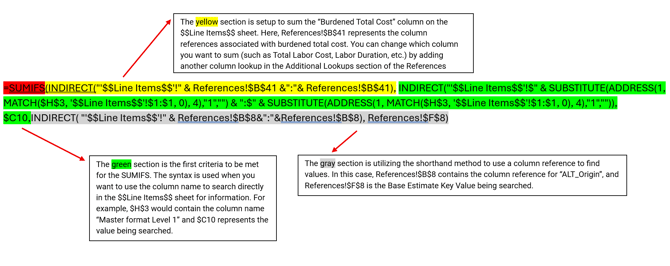 Formula
=SUMIFS(INDIRECT("'$$Line Items$$'!" & References!$B$41 &":"& References!$B$41), INDIRECT("'$$Line Items$$'!$" & SUBSTITUTE(ADDRESS(1, MATCH($H$3, '$$Line Items$$'!$1:$1, 0), 4),"1","") & ":$" & SUBSTITUTE(ADDRESS(1, MATCH($H$3, '$$Line Items$$'!$1:$1, 0), 4),"1","")), $C7,INDIRECT( "'$$Line Items$$'!" & References!$B$8&":"&References!$B$8), References!$F$8)
Yellow Highlight
-
Value that is being summed.
-
This is the Burdened Total Cost, shown on the References sheet in cell B41.
-
INDIRECT is used to reference the appropriate column on the $$Line Items$$ sheet dynamically.
Green Highlight– First Criteria
- The formula matches the selected WBS Property Name from cell H3 to the corresponding column in the $$Line Items$$ sheet.
- Only line items with the selected WBS Property Value are included.
- This dynamic setup allows the dashboard drop-down to toggle between different WBS Property Classifications.
Green Highlight – Second Criteria
- Filters line items in the $$Line Items$$ sheet that have an Alternate Origin of Base Estimate.
Estimate Comparison Note
The SUMIFS formula in the Estimate Comparison Dashboard is slightly different because it sums data from the $$Detail Level Comparison$$ Sheet instead of the $$Line Items$$ sheet.
The overall logic and behavior of the formula remain the same.
Indirect Cost Formulas
Fee Name Formula
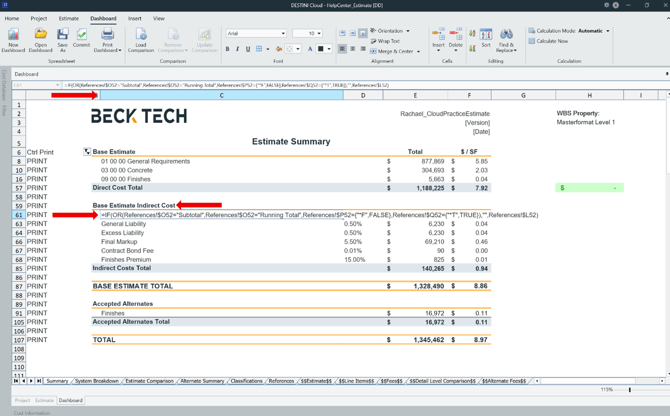
The formula in column C of the Indirect Cost section of the Summary, System Breakdown, and Estimate Comparison Dashboards returns the fee names from the fee table that:
- Are turned ON
- Are not distributed
- Are not subtotals or running totals
Formula
=IF(OR(References!$O52="Subtotal",References!$O52="Running Total",References!$P52={"*F",FALSE},References!$Q52={"*T",TRUE}),"",References!$L52)
How It Works
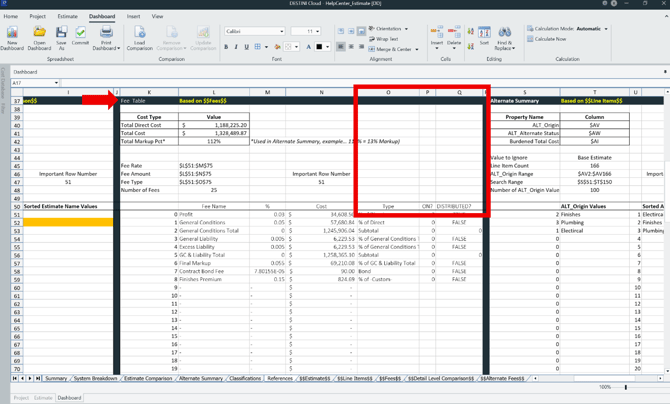
- Fee data is summarized on the References sheet.
- Column O: Fee Type
- Column P: Fee ON/OFF
- Column Q: Distributed flag
- If the fee is a Subtotal or Running Total, turned off (FALSE), or distributed (TRUE), a blank value is returned.
- Otherwise, the formula returns the fee name.
Fee Percentage Formula
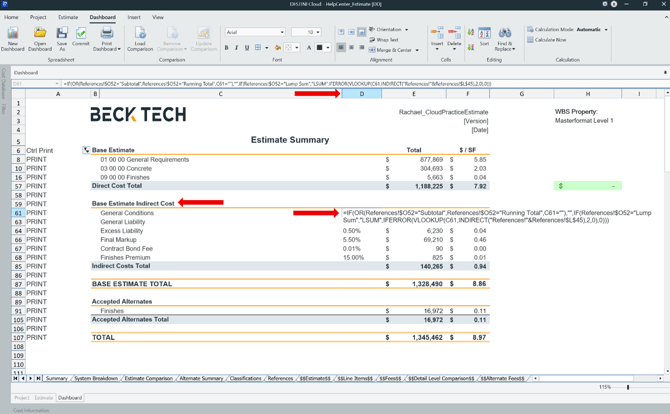
The formula in column D of the Indirect Cost section of the Summary, System Breakdown, and Estimate Comparison Dashboards:
-
Returns the fee percentage for the fee listed in column C.
-
If the fee is a lump sum, it returns LSUM.
Formula
=IF(OR(References!$O52="Subtotal",References!$O52="RunningTotal",C61=""),"",IF(References!$O52="LumpSum","LSUM",IFERROR(VLOOKUP(C61,INDIRECT("References!"&References!$L$45),2,0),0)))
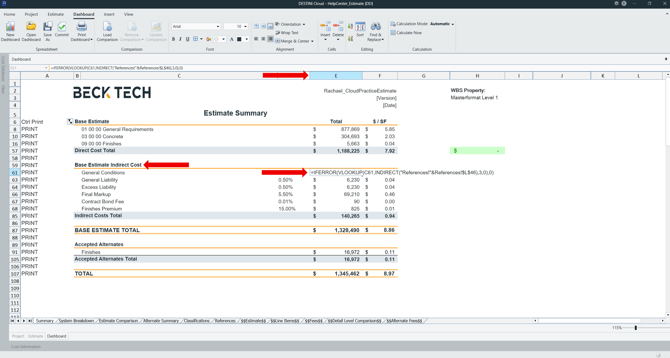
Fee Amount Formula
The formula in column E returns the fee amount from the fee table for each fee listed in column C.
Formula
=IFERROR(VLOOKUP(C61,INDIRECT("References!"&References!$L$46),3,0),0)
Accepted Alternates Formulas
Alternate Name Formula
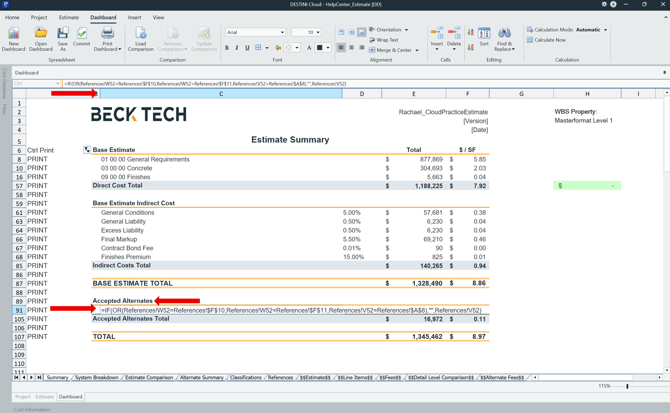
The formula in column C of the Accepted Alternates section of the Summary and System Breakdown Dashboards returns the name of any alternate marked as Accepted in Estimator.
Formula
=IF(OR(References!W52=References!$F$10,References!W52=References!$F$11,References!V52=References!$A$8),"",References!V52)
How It Works
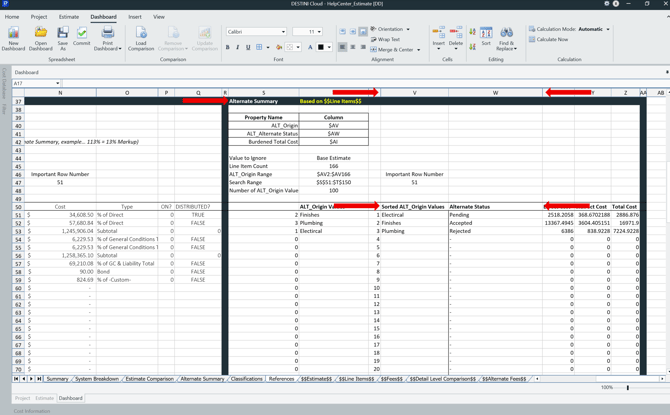
- Alternate data from the $$Line Items$$ and $$Alternate Fees$$ sheets are summarized on the References sheet.
- Column V: Alternate Name or Origin
-
- Column W: Alternate Status
- Cells F10 and F11 contain the key terms for Pending and Rejected statuses.
- If the Alternate status is Pending or Rejected, the formula returns a blank value.
- If the Alternate status is Accepted, the formula returns the Alternate Name.
Alternate Cost Formula
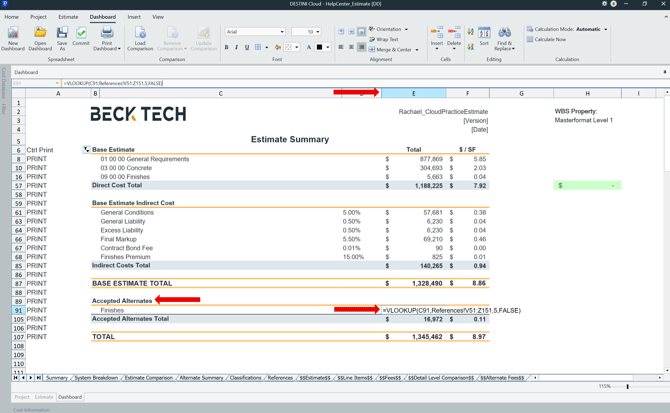
The formula in column E looks up the Alternate Name listed in column C and returns the Total Cost for that Alternate.
=VLOOKUP(C91,References!V51:Z151,5,FALSE)
Suggest an Improvement for this Article