
In this article, we will add a Project Total Cost field to your Page Header based on your Base Estimate and Accepted Alternate Total Cost. When printed on every page, your project’s Total Cost will always be visible.
Getting Started
1. Open the Report Designer
-
In DESTINI Cloud: Estimator, open an Estimate (any estimate, it doesn’t matter which).
-
Navigate to the Home View > New Report which will launch Report Designer.
2. In the Report Designer, open your report template file
-
Click the Open button
-
Navigate to the location of the report template file (.repx) that you want to modify
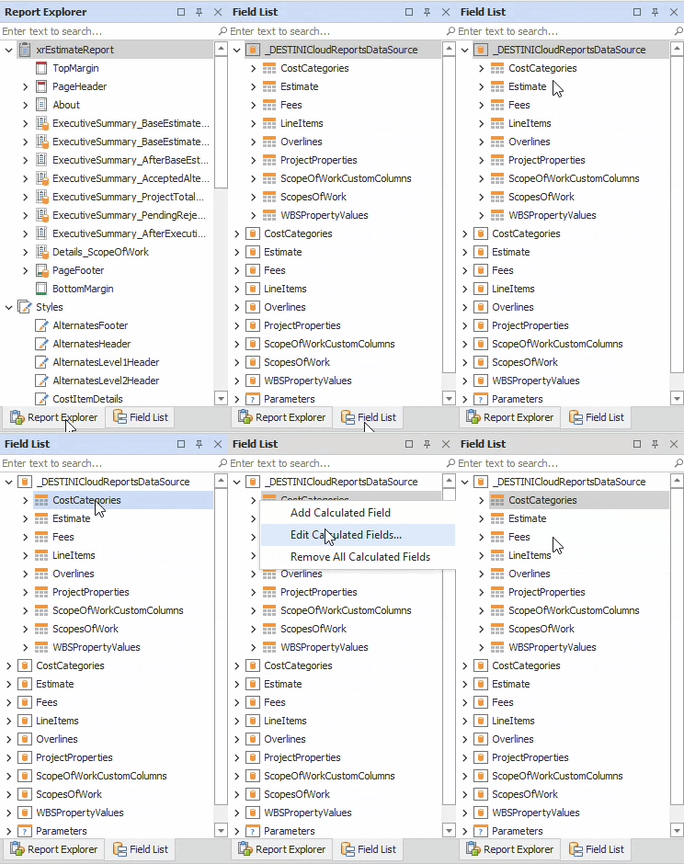
3. On the right side of your screen, open the Field List
-
Locate the Report Explorer on the right side of the screen.
-
Using the tabs, switch to the Field List.
4. Inside the Field List, expand _DESTINICloudReportsDataSource, right click on any child node and select “Edit Calculated Fields…”
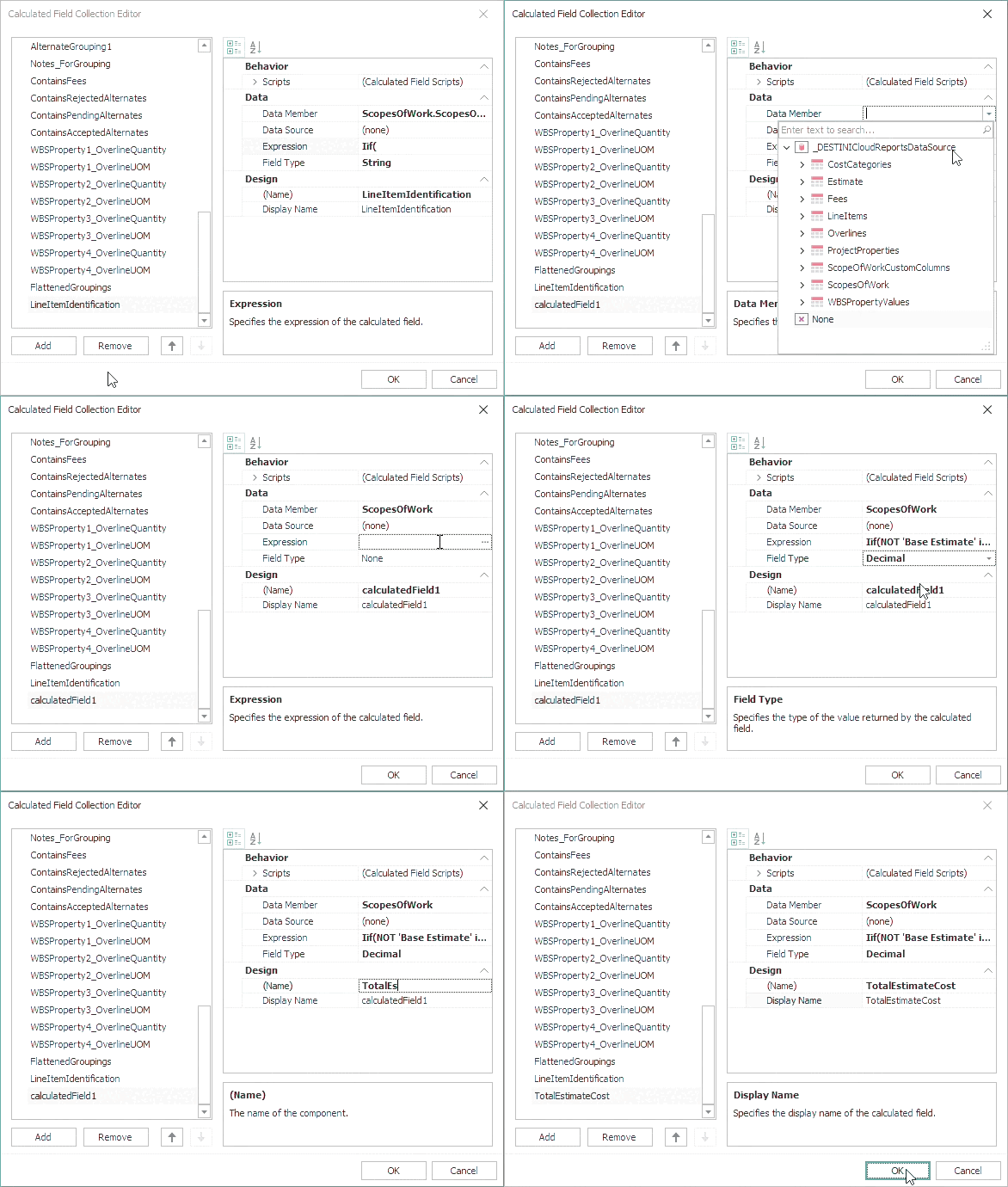
5. In the bottom left side of the window, click the Add button.
The new calculated field is automatically selected, and its properties are visible on the right side of the window.
6. Populate the calculated field’s properties using the following information then click OK
-
Data Member: ScopesOfWork
-
Expression:
-
Iif(NOT 'Base Estimate' in (?IncludedScope), 0, ?IncludeExecutiveSummary AND ?IncludeFeesSummary, [][[Status] = 'Base Estimate'].Sum([TotalCost]), [][[Status] = 'Base Estimate'].Sum([DirectCost])) + Iif(NOT 'Accepted' in (?IncludedScope), 0, NOT [ContainsAcceptedAlternates], 0, ?IncludeExecutiveSummary AND ?IncludeFeesSummary, [][[Status] = 'Accepted' AND ([AlternateGrouping1] In (?AlternatesLevel1Filter) Or IsNullOrEmpty(?AlternatesLevel1Filter))].Sum([TotalCost]), [][[Status] = 'Accepted' AND ([AlternateGrouping1] In (?AlternatesLevel1Filter) Or IsNullOrEmpty(?AlternatesLevel1Filter))].Sum([DirectCost]))
-
-
Field Type: Decimal
- Name: TotalEstimateCost
Designer Changes
1. At the top of the report, locate the Page Header band.
2. Inside the band, right-click the bottom-right cell and select Insert → Row Below
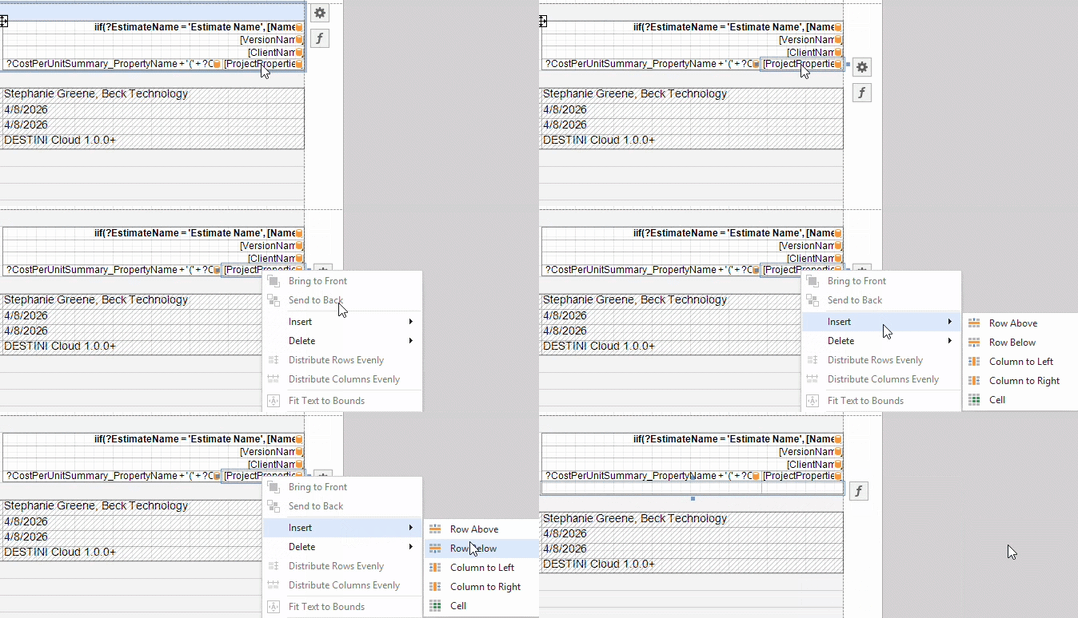
The new row has 2 cells. If you would prefer 1 cell, skip to the bottom of this article.
3. Select the new cell on the left.
4. Click the Gear button to the right. Populate the following.
-
Expression: 'Project Total Cost:'
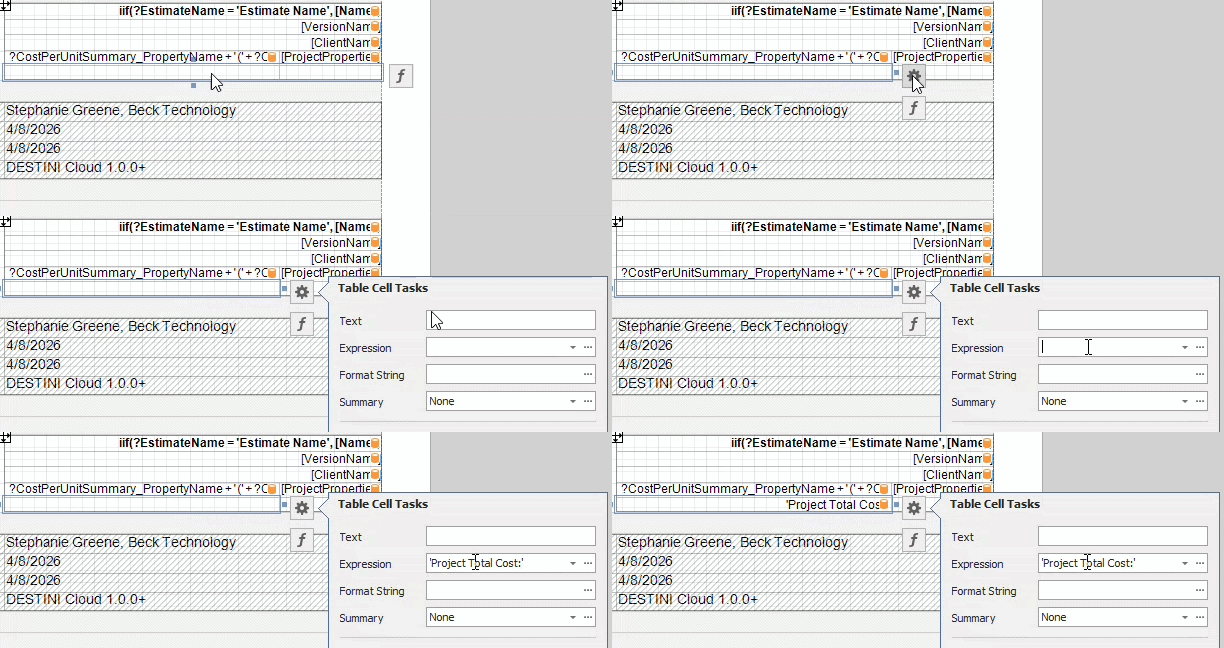
You can change the text inside the single quotes.
-
Expression: [ScopesOfWork].[TotalEstimateCost]
-
Set Format String as {0:c0}
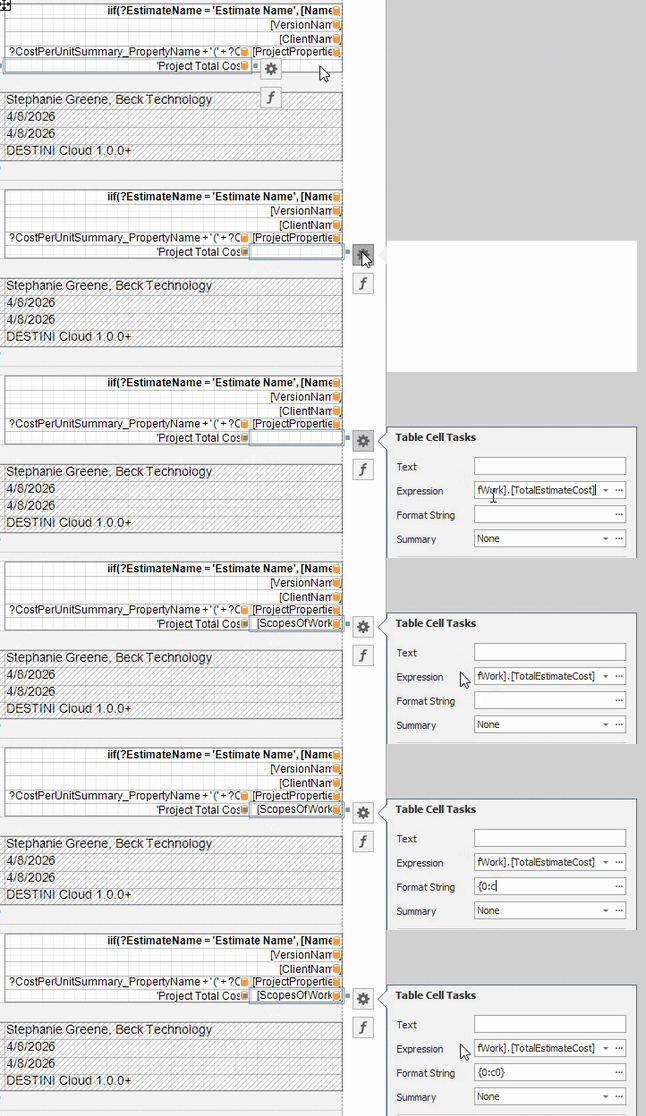
The c0 format will print your Project Total Cost as a currency with 0 decimal places.
6. Save and run the report in DESTINI Cloud: Estimator.
Single Cell Project Total Cost
If you would like your Project Total Cost field to appear inside 1 cell instead of 2, use the following steps after Insert → Row Below
1. Right-click either new cell and select Delete → Cell
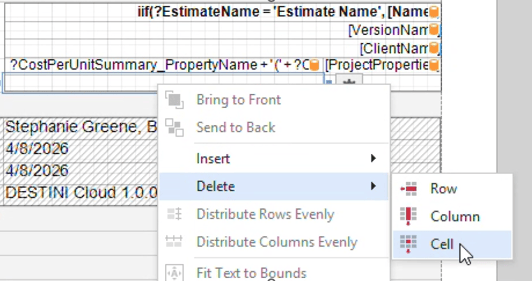
2. Select the remaining new cell and populate the following:
-
Expression: 'Project Total Cost: ' + FormatString('{0:c0}', [ScopesOfWork].[TotalEstimateCost] )
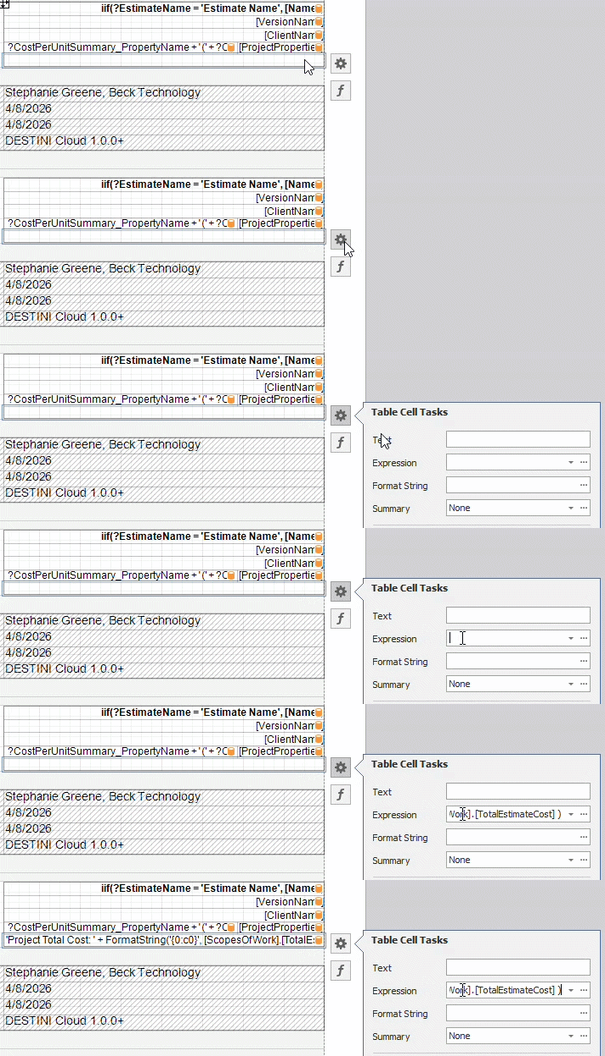
When an expression combines text and numeric values, use the FormatString() function to format the numbers.
3. Save and run the report in DESTINI Cloud: Estimator.