
In this article, we will add a % of Total column to the Executive Summary’s Base Estimate Level 1 Grouping.
Getting Started
- Open the Report Designer
- In DESTINI Cloud: Estimator, open an Estimate (any estimate, it doesn’t matter which).
- Navigate to the Home View.
- In the main Ribbon, click on New Report…
- Report Designer will be launched
- In the Report Designer, open your report template file
- Click the Open button
- Navigate to the location of the report template file (.repx) that you want to modify
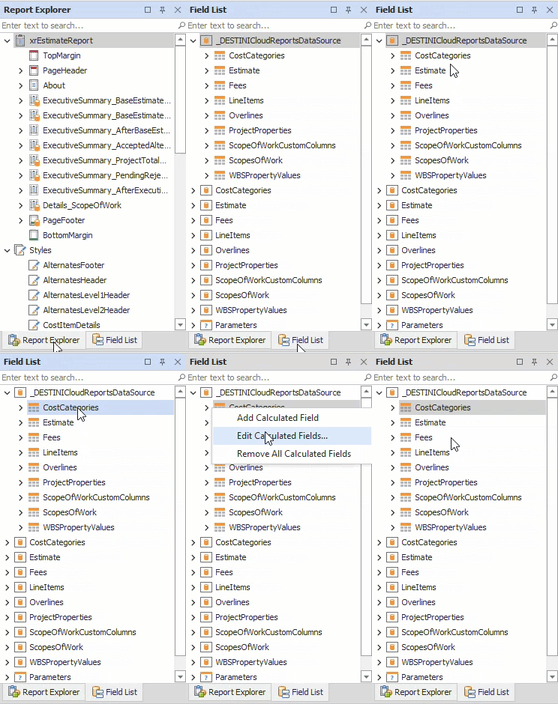
- On the right side of your screen, open the Field List
- Locate the Report Explorer on the right side of the screen.
- Using the tabs, switch to the Field List.
- Inside the Field List, expand _DESTINICloudReportsDataSource, right click on any child node and select “Edit Calculated Fields…”
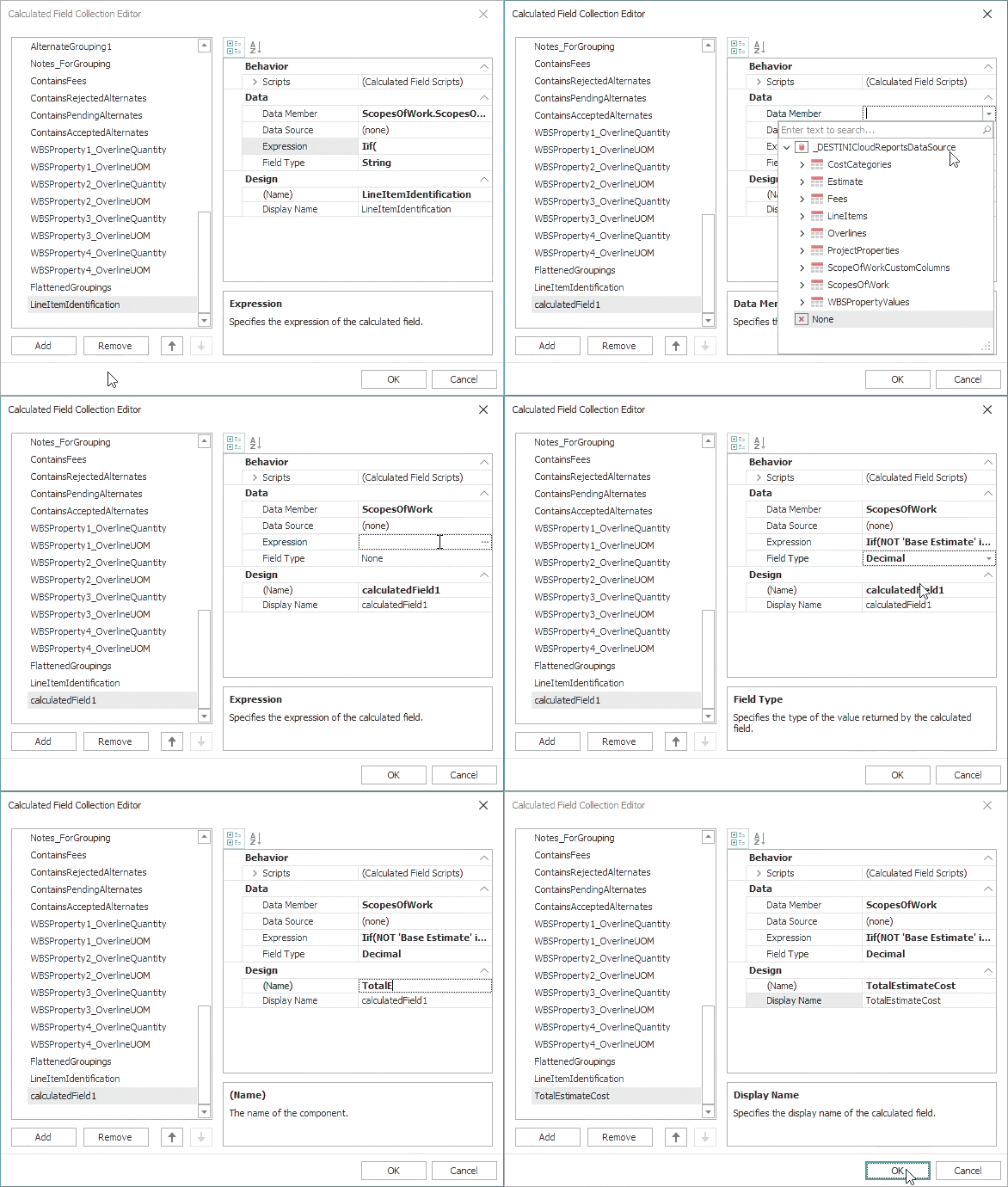
- In the bottom left side of the Calculated Field Collection Editor window, click the Add button
Result: The new calculated field is automatically selected, and its properties are visible on the right side of the window. - Populate the calculated field’s properties using the following information and click OK
- Data Member: ScopesOfWork
- Expression: See below code snippet
- Field Type: Decimal
- Name: TotalEstimateCost
% of Total Denominator Expression
We recommend using the following Expression, which incorporates both Base Estimate and Accepted Alternates cost and responds to parameter selections. With this denominator, you can apply a % of Total column to any section of your report.
Expression:
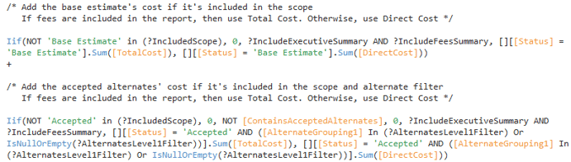
Iif(NOT 'Base Estimate' in (?IncludedScope), 0, ?IncludeExecutiveSummary AND
?IncludeFeesSummary, [][[Status] = 'Base Estimate'].Sum([TotalCost]),
[][[Status] = 'Base Estimate'].Sum([DirectCost])) +
Iif(NOT 'Accepted' in (?IncludedScope), 0, NOT [ContainsAcceptedAlternates],
0, ?IncludeExecutiveSummary AND ?IncludeFeesSummary, [][[Status]
= 'Accepted' AND ([AlternateGrouping1] In (?AlternatesLevel1Filter)
Or IsNullOrEmpty(?AlternatesLevel1Filter))].Sum([TotalCost]),
[][[Status] = 'Accepted' AND ([AlternateGrouping1]
In (?AlternatesLevel1Filter)
Or IsNullOrEmpty(?AlternatesLevel1Filter))].Sum([DirectCost]))
Alternative Expressions
|
Denominator |
Recommended Use |
Expression |
|
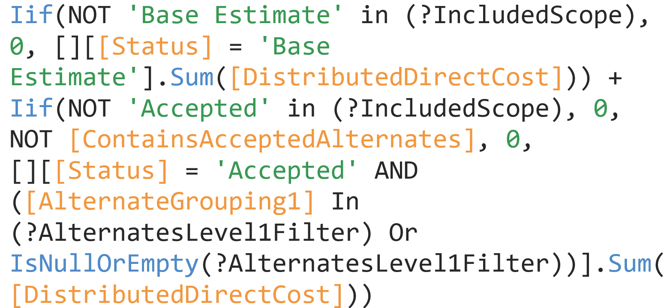
Base Estimate and Accepted Alternates Distributed Direct Cost (static) |
Executive Summary for Base Estimate WBS Level 1 Line Item Details |
Iif(NOT 'Base Estimate' in (?IncludedScope), 0, [][[Status] = 'Base Estimate'].Sum([DistributedDirectCost])) + Iif(NOT 'Accepted' in (?IncludedScope), 0, NOT [ContainsAcceptedAlternates], 0, [][[Status] = 'Accepted' AND ([AlternateGrouping1] In (?AlternatesLevel1Filter) Or IsNullOrEmpty(?AlternatesLevel1Filter))].Sum([DistributedDirectCost])) |
|
Base Estimate Direct Cost or Total Cost (dynamic) |
Executive Summary for Base Estimate |
Iif(?IncludeExecutiveSummary AND ?IncludeFeesSummary, [][[Status] = 'Base Estimate'].Sum([TotalCost]), [][[Status] = 'Base Estimate'].Sum([DirectCost])) |
|
Base Estimate Distributed Direct Cost (static) |
Executive Summary for Base Estimate WBS Level 1 |
[][[Status] = 'Base Estimate'].Sum([DistributedDirectCost]) |


Designer Changes
In this section, we will show you how to apply the % of Total column to the Executive Summary Base Estimate Level 1 Grouping section. These steps can be repeated throughout the report with minor changes.
1. At the top of the report, locate the Executive Summary’s Base Estimate Level 1 Grouping section.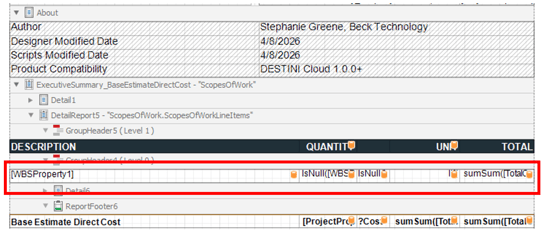
2. Right-click the ‘Total’ column and select Insert → Column to Right
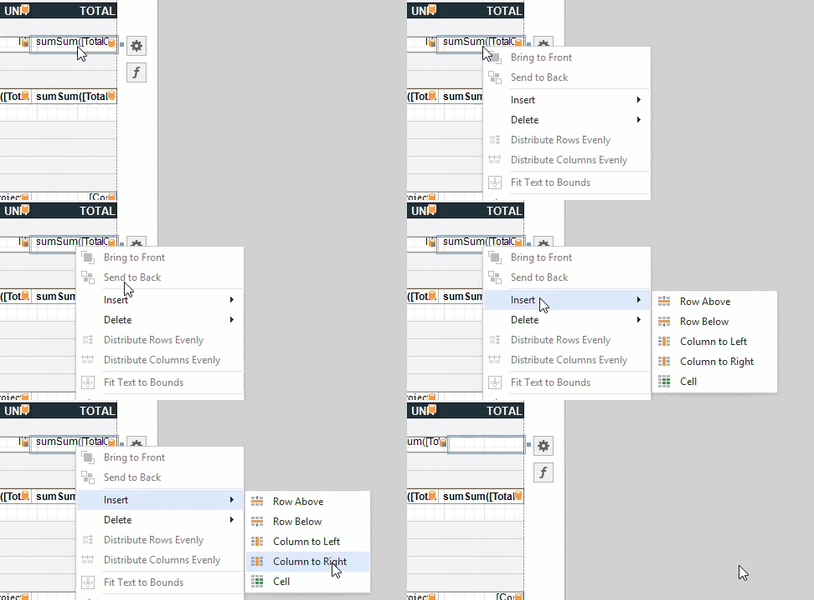
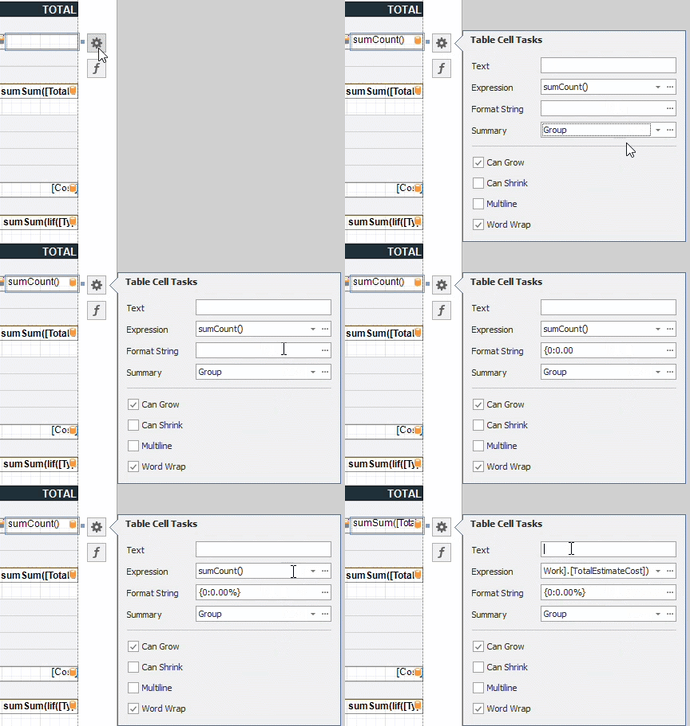
3. With the new cell selected, click the Gear button to the right. Going from bottom up
-
-
Summary: Group
-
Set Format String as {0:0.00%}
-
Expression:

-
sumSum([TotalCost]/[ScopesOfWork].[TotalEstimateCost])
Go from the bottom to the top in order to set the Summary to Group before updating Expression. sumSum() will return an error if Summary is set to None as is the default.
4. Repeat step 2 for the Column Header with Text % of Total
5. Repeat Steps 2 and 3 as needed throughout your report
6. Save and run your report in DESTINI Cloud: Estimator
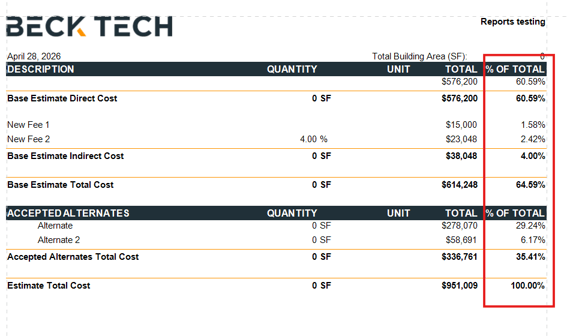
The Summary and Expression settings will depend on which section of the report you’re modifying. Use the following guidelines to set up the appropriate expressions.
|
Report Section |
Report Subsection |
Summary |
Expression |
|
(Executive) Summary Base Estimate |
WBS1 List |
Group |
sumSum([TotalCost]/[ScopesOfWork].[TotalEstimateCost]) |
|
Summary Base Estimate |
Direct Cost |
Report |
sumSum([TotalCost]/[ScopesOfWork].[TotalEstimateCost]) |
|
Summary Base Estimate |
Fees List |
None |
[Cost] / [ScopesOfWork].[TotalEstimateCost] |
|
Summary Base Estimate |
Indirect Cost |
Report |
sumSum(Iif([Type] In ('RunningTotal', 'Subtotal'), 0, [Cost]) / [ScopesOfWork].[TotalEstimateCost]) |
|
Summary Base Estimate |
Total Cost |
Report |
sumSum([TotalCost] / [TotalEstimateCost]) |
|
Summary Alternates |
Alternates Grouping |
Group |
sumSum(Iif(?IncludeFeesSummary, [TotalCost], [DirectCost]) / [TotalEstimateCost]) |
|
Summary Alternates |
Alternates List |
None |
Iif(?IncludeFeesSummary, [TotalCost], [DirectCost])/ [TotalEstimateCost] |
|
Summary Alternates |
Alternates Total |
Report |
sumSum(Iif(?IncludeFeesSummary, [TotalCost], [DirectCost])/[TotalEstimateCost]) |
|
Line Item Details |
|
Group |
sumSum([TotalCost]/[ScopesOfWork].[TotalEstimateCost]) |
Suggest an Improvement for this Article