
Trade Requirements are configured individually for each Bid Package and specify the information that subcontractors must provide.
From the Bid Packages page in Settings, Company Admins can define and manage the Bid Packages used across all Bid Day projects, including adding new Trade Requirements to a Bid Package.
NOTE: The options and processes described in this article are only available to Company-wide Bid Day Admins. This is a higher level of access than a Project Admin. To understand more about Bid Day user permissions, see the following article:
Add New Trade Requirements
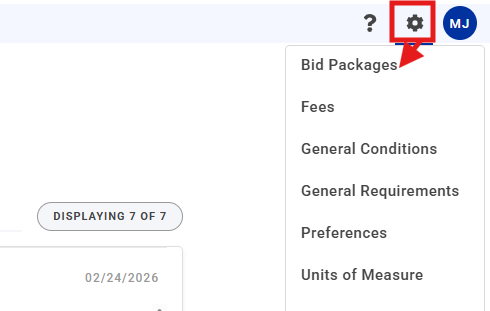
- Click the Settings gear icon in the main menu banner and select Bid Packages.
-
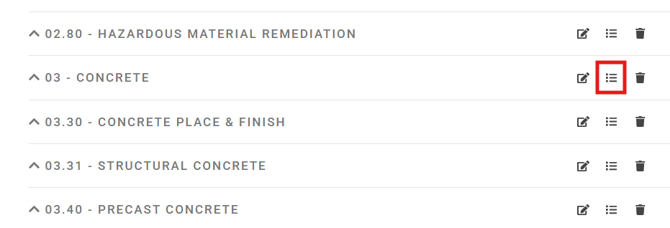
Click the list icon next to the Bid Package to edit its Trade Requirements.
-
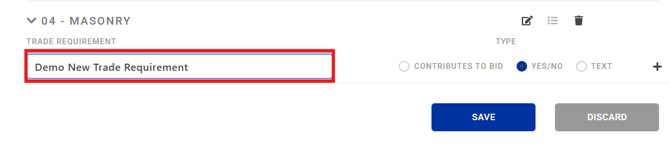
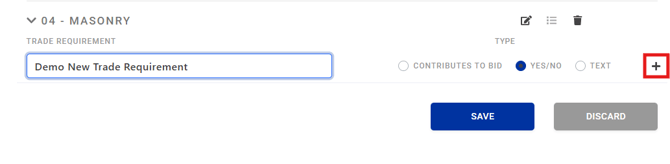
You will see a blank field where you can enter a name for your new Trade Requirement.
-
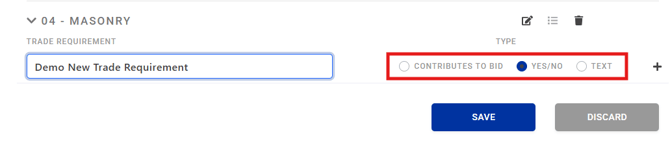
Select the Type (see below for more information on Trade Requirement Types).
-
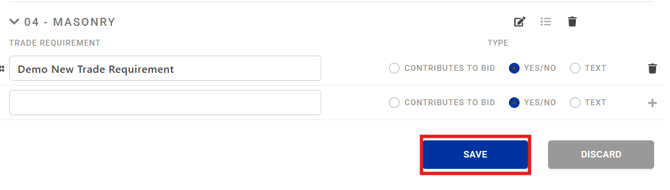
IMPORTANT: Click the + icon at the end of the row to add the requirement to the list. If you click SAVE before hitting the + icon, the Trade Requirement will not be saved.
- Click SAVE.
Trade Requirement Types
Each Trade Requirement must be assigned a Type. The selected Type dictates the subcontractor's response format and how these values are presented in Bid Day.
- Contributes to Bid: A numeric value that adds to or subtracts from the bid total.
- Yes / No: A checkbox to indicate whether the requirement is included.
- Text: A free-text field for additional instructions or clarification.
Lesson - Bid Day: Admin Onboarding
You can learn more about the role of a Bid Day Admin, Bid Packages and more via the Admin Onboarding lesson on the Beck Tech Training Portal.
LINK - Bid Day: Admin Onboarding
NOTE: This lesson is only available to Company-wide Bid Day Admins. If you are an admin and do not have access to the above lesson, please email us.
If you require Bid Day Admin access, please contact one of your company's designated Admins.
Submit Your Suggestions to Help Improve This Article