
The Page Header in DESTINI Cloud: Estimator Reports displays the Estimate Name, Client Name, and Version Name by default. You can enhance it by adding details such as Client Address or Estimate Number.
This article explains how to display values from the Estimate Information window in your report’s Page Header.
1. Open the Report Designer
-
In DESTINI Cloud: Estimator, open an Estimate (any estimate, it doesn’t matter which).
-
Navigate to the Home View > New Report, which will launch Report Designer.
2. In the Report Designer, open your report template file
-
Click the Open button
-
Navigate to the location of the report template file (.repx) that you want to modify
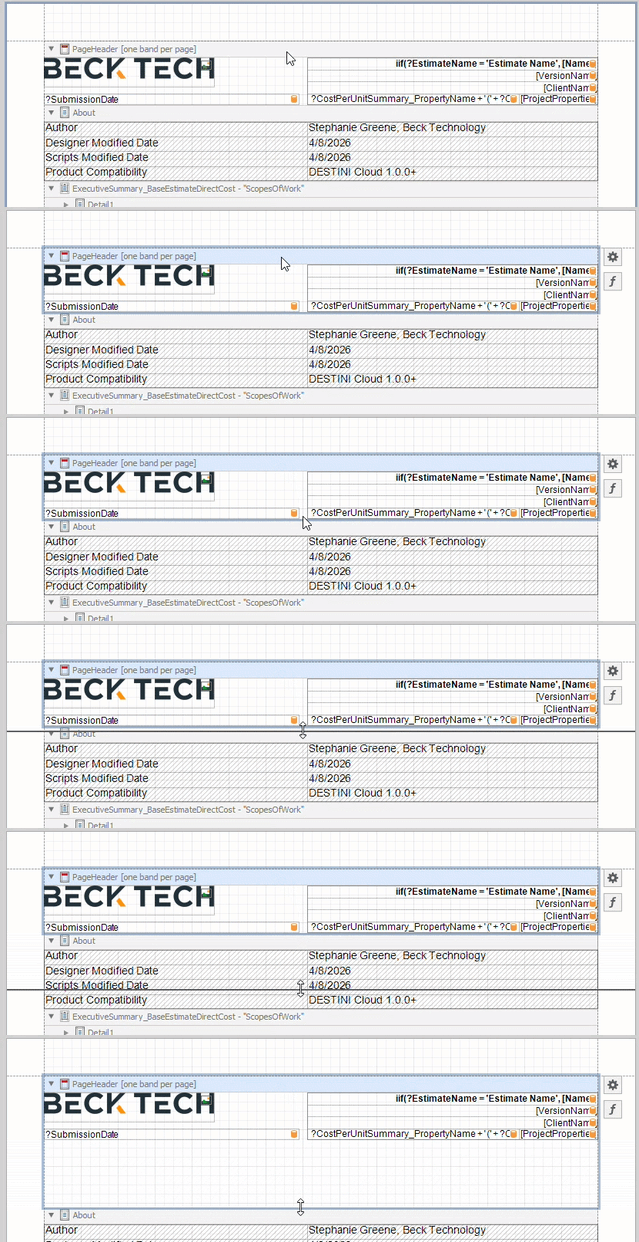
3. In the middle of your window, locate the Page Header and select its grey band at the top.
When selected, the band will have a blue border surrounding it.
4. Move your mouse to the bottom edge of the Page Header band. Drag and drop the bottom edge downwards to create more vertical space.
5. On the left side of your screen, locate the Toolbox panel. Drag and drop the Label control into your Page Header band.
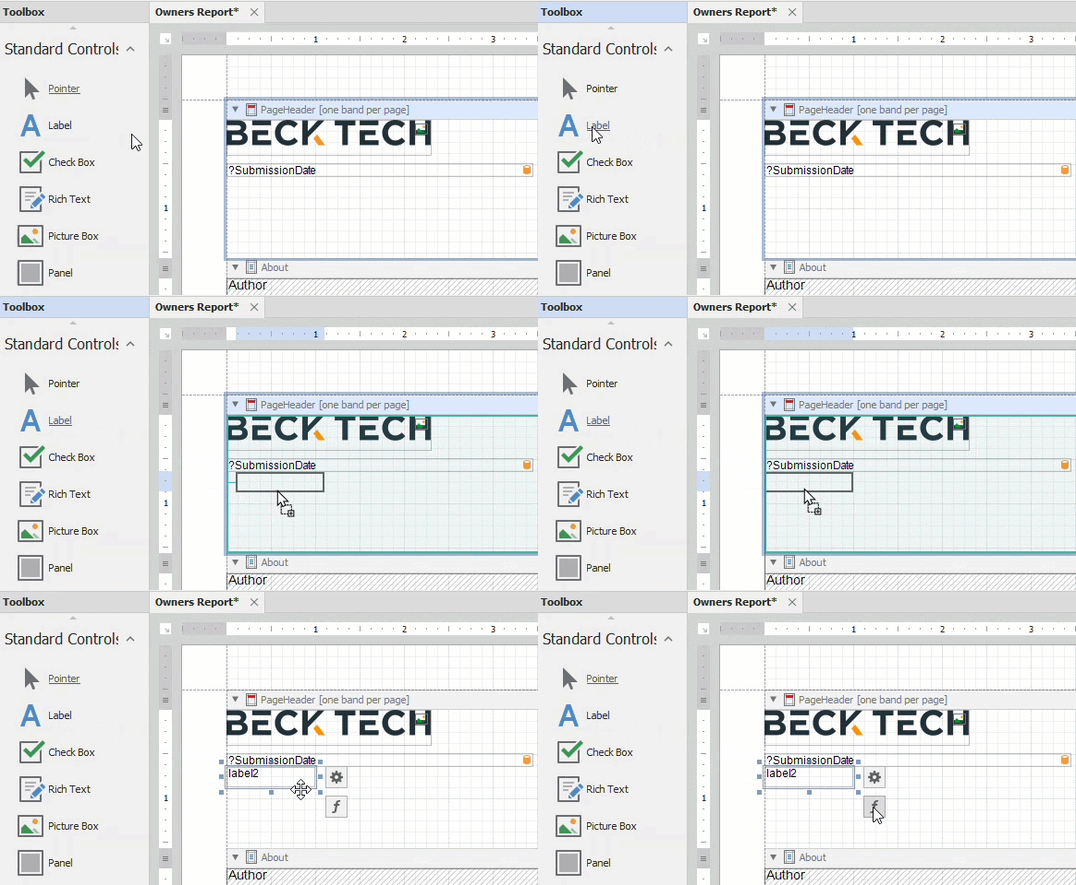
6. With the new Label control selected, click the Function button on the right.
7. Inside the Expression Editor window, locate the Estimate’s available columns in the bottom middle of the window.
The bottom middle box shows the available options based on the selection in the bottom left box. When Fields is selected in the left box, you will see a list of columns inside the current data source and parameters.
8. Double-click a column you want to see in the Page Header. Options include:
-
ClientAddress
-
ClientCity
-
ClientPostalCode
-
ClientStateOrRegion
-
Number (Estimate Number)
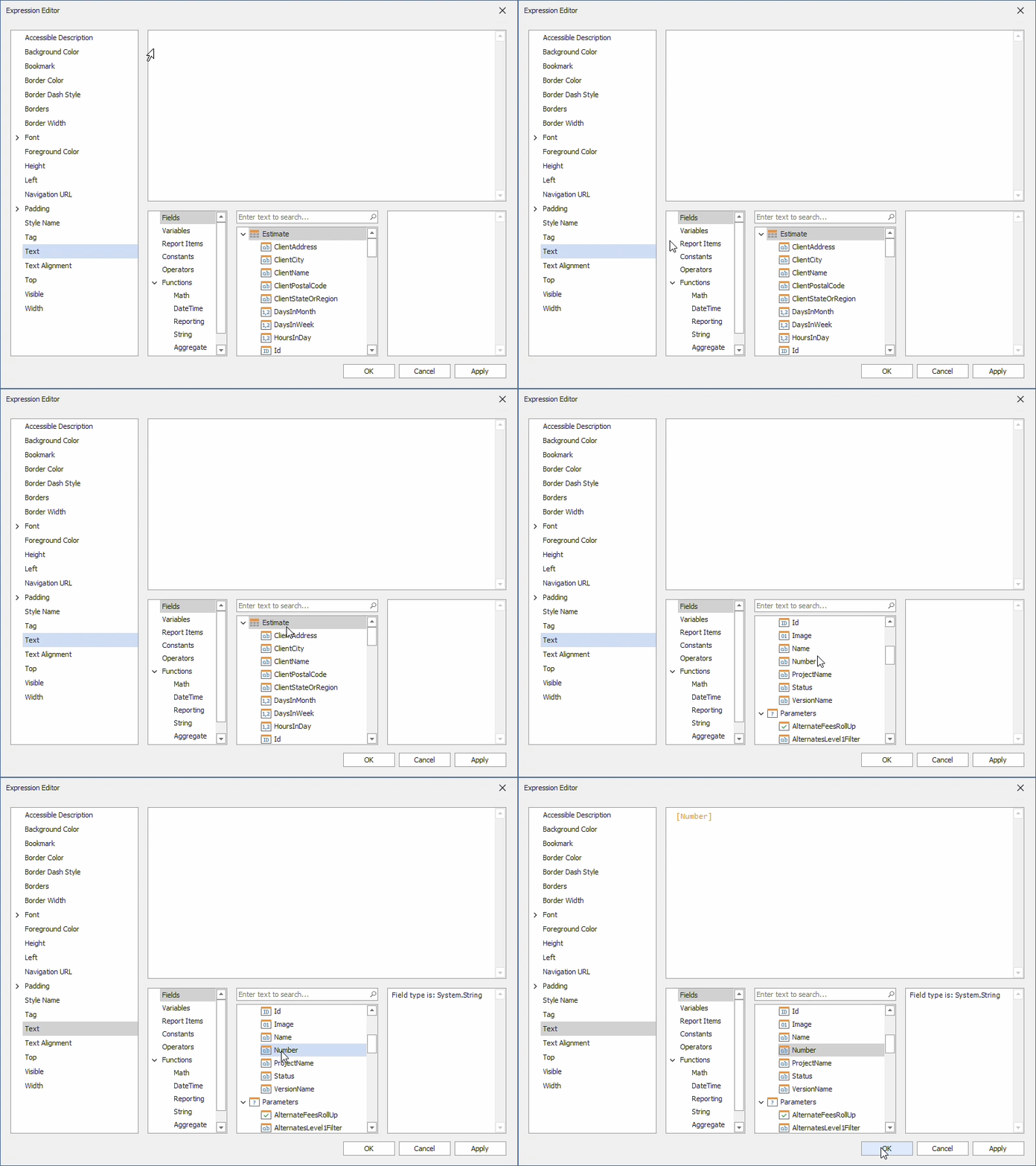
The Estimates columns are connected to values inside the Estimate Information window.
9. Click OK
10. (Optional) – Widen your Label control.
11. (Optional) – Reselect the Page Header band and move the bottom edge up.
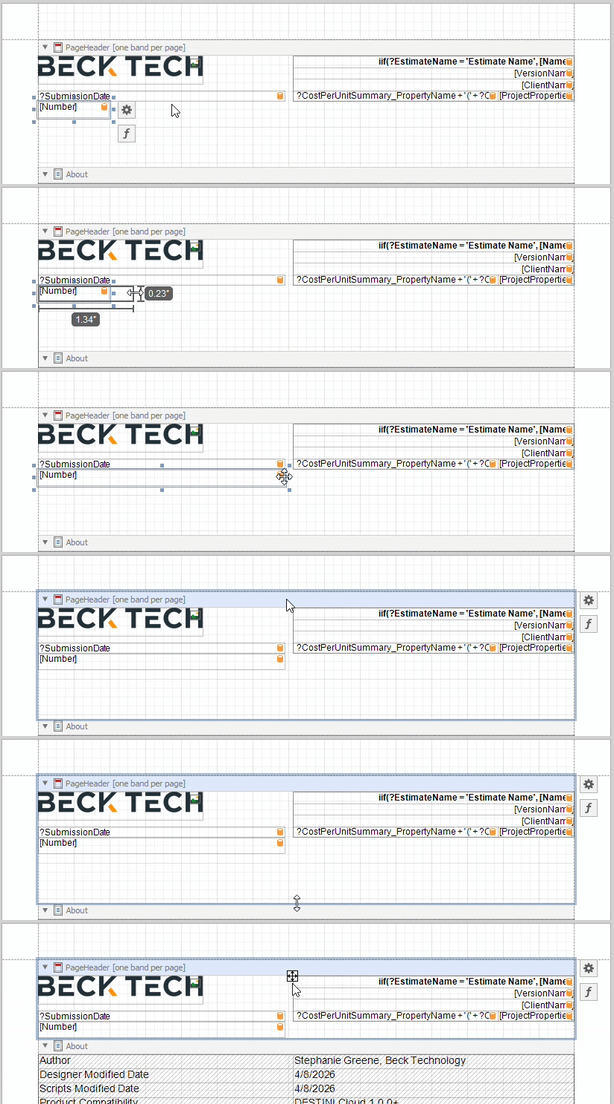
12. Save and run your report in DESTINI Cloud: Estimator.