
Cost Library is a centralized cost database and pricing engine for DESTINI Cloud. It serves as an organization's single source of truth for estimating information. Based in the cloud, Cost Database enables teams to maintain standardized data that can be consistently applied across projects and estimates.
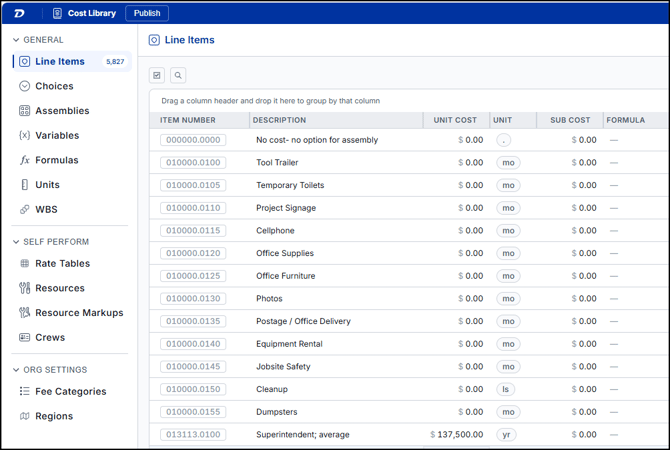
Rather than building cost data from scratch in every estimate, organizations maintain and manage their cost data in one shared Cost Library that can be used across multiple projects. This centralized approach helps promote consistency, reduce duplicate effort, and provide greater control over how estimating data is structured and maintained.
Cost Library stores the following data:
General
-
Line Items
-
Variables
-
Formulas
-
Units
-
WBS
Assemblies
-
Choices
-
Assemblies
Self Perform
-
Rate Tables
-
Resources
-
Resource Markups
-
Crews
Org Settings
-
Fee Categories
-
Regions
Relationship Between Cost Library and DESTINI Cloud
DESTINI Cloud estimates reference data that originates from Cost Library. This relationship enables estimators to build estimates using pre-defined, standardized data rather than creating estimating information manually.
Key aspects of this relationship include:
-
Estimates pull from a shared, centralized cost database
-
Cost data is applied through line items, assemblies, rate tables, and crews
-
Standardized data supports consistency across projects and teams
Cost data is managed within Cost Library and made available for estimating through the organization's publishing process.
We recommend you limit Cost Library access to a small group of authorized users responsible for maintaining estimating data. Restricting access helps support data consistency, governance, and long-term data quality.
Logging In to Cost Library
You log in to Cost Library using the same Beck Technology account credentials you use to sign into DESTINI Cloud Estimator. You can access Cost Library using the following URL from a web browser: https://costlibrary.beck-technology.com
The first time you log in after acquiring a license, Cost Library displays a blank screen.
Navigating Cost Library
Working in Cost Library involves creating, maintaining, and organizing cost data that will be used in DESTINI Cloud estimates. The interface is structured to support efficient data management across all Cost Library data types while providing a consistent experience throughout the application.
Cost Library Left Navigation
The Cost Library left navigation is organized into sections that group related types of cost data. Each section represents a different role the data plays in building and supporting estimates.
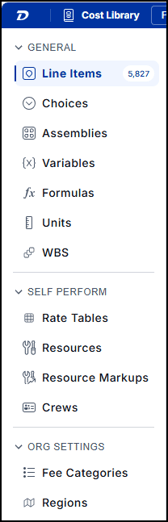
General Section of the Left Navigation
Items in the General section form the foundation of the Cost Library data model, where each component contributes to how cost information is defined and calculated. These elements are interconnected and often work together when building cost data used in estimates. Items in the General section include:
- Line Items – Individual cost items that represent scoped work
- Choices – Standardized selectable options that can be reused across assemblies
- Assemblies – Predefined groupings of line items, formulas, and logic that represent a complete scope of work and can be reused across estimates
- Variables – Defined values that support formulas, calculations, and cost logic
- Formulas – Calculation logic used to derive costs or values from other data
- Units – Standard units of measure used across cost data
- WBS – Work Breakdown Structure values used to organize, group, and report on cost data
Self Perform Section
The Self Perform section supports workflows where organizations estimate work they perform directly rather than subcontracting. The data in this section is referenced by line items to calculate self perform costs. Items in the Self Perform section include:
- Rate Tables – Structured tables that define Labor, Equipment, and Other rates
- Resources – Labor, equipment, or other resources used in self perform estimating
- Resource Markups – Adjustments applied to resources to account for overhead, burden, or other factors
- Crews – Groupings of resources that represent how work is performed in the field
Org Settings Section
The Org Settings section contains configuration elements that affect organization-wide Cost Library behavior. Items in this section may include:
- Fee Categories – Standard fee categories for tracking and reporting across all projects and estimates
- Regions – Configuration for regionalized pricing, if enabled for your organization.
The specific options available within Org Settings may vary based on your organization's configuration.
Additional organization-level settings and administrative capabilities may be available depending on your organization's Cost Library configuration.
Main Workspace (Data Grid)
The main workspace is the central area where Cost Library data is displayed.
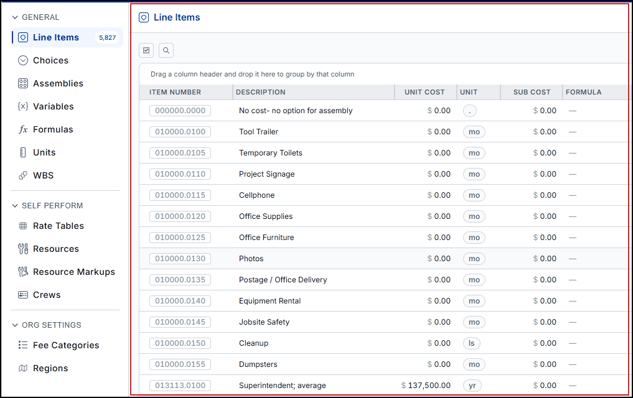
Most sections use a data grid to present records. While the structure varies by section, the workspace typically includes:
- A table of records (such as line items, resources, assemblies, or variables)
- Columns specific to the selected data type
- Tools for sorting and searching
- Row selection for viewing detailed information
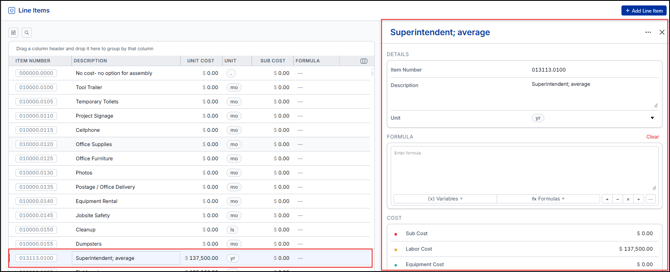
The data grid is primarily used to view and locate records. Creating, editing, and maintaining data is typically performed through the drawer that opens when a record is selected, as shown in the following screen shot.
Getting Started with Regionalized Pricing
Before you begin adding or updating cost data, you need to understand where that pricing will live. Cost Library supports regionalized pricing. Regionalized pricing allows your organization to maintain different pricing for different markets while using the same Cost Library structure.
For example, your organization could have a Dallas region and a Houston region. Both regions would use the same line items, assemblies, WBS, and other Cost Library structure, while maintaining their own pricing.
Regions Are Optional
Regionalized pricing does not have to be enabled. Until regionalized pricing is turned on, you can continue adding and editing costs normally without selecting a region.
When you enable regionalized pricing, the first region you create is automatically identified as the primary region. If Dallas is the first region you create, Dallas is your primary region. Your existing Cost Library pricing becomes the pricing for your primary region. This includes:
- Line item costs
- Crew assignments
- Material assignments
- Self Perform settings
Your primary region works like any other region, except it can't be deleted. Your organization must always have at least one region.
Enable Regionalized Pricing Setup
- Open DESTINI Cloud Cost Library.
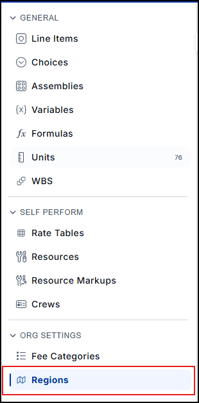
- In the left navigation, click Regions.
- Click Enable Regionalized Pricing.
- For Region Name, enter a name.
- For Description, enter a description.
- Click Enable. Cost Library creates the primary region.
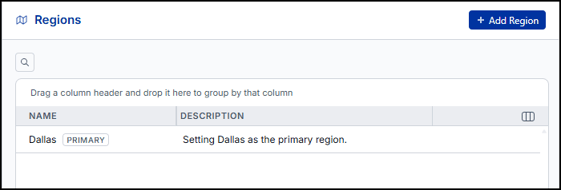
Your existing Cost Library pricing is now associated with the region you created. Your existing pricing is not deleted or reset when you enable regions. It becomes the pricing for your first region.
Working with Additional Regions
If your organization maintains pricing for other markets, you can create additional regions by clicking Add Region on the Regions page. Adding additional regions makes line items available in those regions, but it doesn't bring the pricing with the line items. All costs in duplicated regions are $0.
A new region uses the same Cost Library structure, but its regional information starts empty.
|
Regional Information |
Starting Value |
|
Pricing |
0.00 |
|
Self Perform |
Off |
|
Crew assignments |
Blank |
|
Material assignments |
Blank |
Duplicate a Region
If you want to use the primary region as a starting point for the cost in other regions, you can duplicate it.
- Open DESTINI Cloud Cost Library.
- In the left navigation, click Regions.
- Select the primary region. The drawer opens.
- Click the ellipses (...) in the title bar of the drawer.
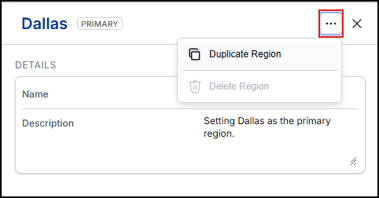
- Select Duplicate Region. Cost Library duplicates the region using the primary region name and the numeral 1. For example, Dallas (1).
- Click the new region in the grid. The drawer opens.
- In the drawer, for Name, enter a new name.
- For Description, enter a new description.
The duplicated region imports costs and line items from the primary region. You must then edit costs to reflect pricing in the new region, as needed.
Select the Region You Want to Work In
Once multiple regions exist, use the Region dropdown on the Line Items page to choose which region's pricing you want to view or edit.
- Open DESTINI Cloud Cost Library.
- In the left navigation, click Line Items.
- Click the Region dropdown and choose a region.
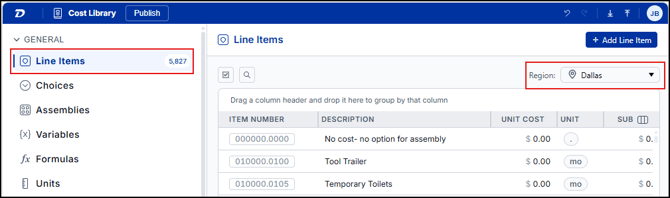
After selecting a region, Cost Library displays the pricing and regional information associated with that region. Switching regions changes the regional information you are viewing. It does not change the shared Cost Library structure.
|
Shared Across Regions |
Specific to Each Region |
|
Line Items |
Pricing |
|
Assemblies |
Self Perform settings |
|
WBS |
Crew assignments |
|
Cost Library structure |
Material assignments |
Changes made to one region's pricing do not affect another region.
With the correct region selected, adjust pricing and settings for that region.
Publish the Region
Cost Library uses a publish-and-snapshot model to control how cost data becomes available to estimates.
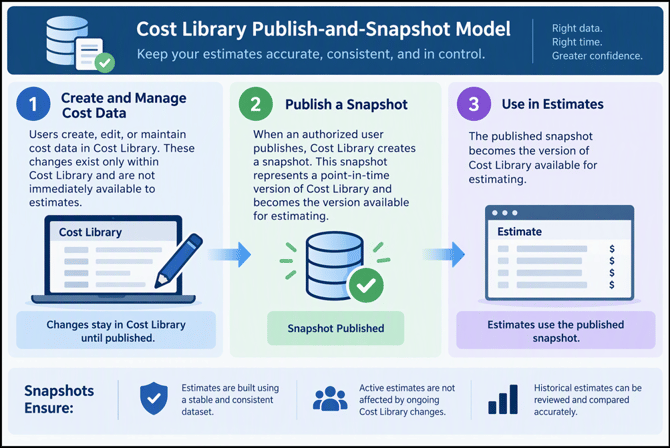
If Cost Library data changes after publication, users can publish a new snapshot. Existing estimates continue using their current snapshot until a user chooses to apply an updated version.
As new versions of the Cost Library are published, estimators may be notified that updated Cost Library data is available for their estimate.
To apply newer Cost Library data to an existing estimate:
- Open an estimate in DESTINI Cloud Estimator.
- Open Settings (click the gear icon in the top right corner of the browser).
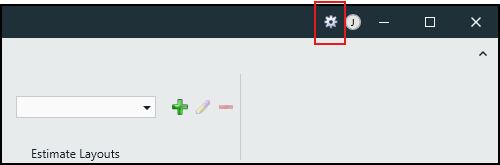
- Click Cost Library > Check for Updates.
The new cost will be applied to new line items added to the estimate. Existing line items will not be modified.